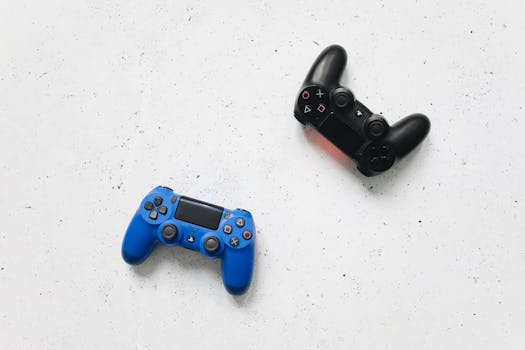
Pocket-sized gaming gets real when you blend a PS5 controller with cloud streaming on iOS. Suddenly, hit titles appear under your fingertips, wherever you are.
The rapid growth of cloud services means seamless console experiences even on your iPhone. This is changing mobile play habits, especially as ps5 controller cloud ios support gets more robust.
If you’re ready to turn your device into a powerhouse, stick around. This guide delivers exact instructions, troubleshooting, and tips for productive, frustration-free gaming sessions on the go.
Pairing Your PS5 Controller to iOS for Cloud Gaming
Get your PS5 controller cloud ios journey started by pairing your controller directly to your Apple device. This means you’ll sidestep touchscreen hassle and enjoy more control instantly.
Bluetooth pairing brings the two together, replacing on-screen controls with real buttons. This feels familiar and boosts responsiveness, making ps5 controller cloud ios gaming both comfortable and fun.
Turning on Bluetooth and Preparing Your Devices
Open your iPhone’s Settings, tap Bluetooth, then make sure it’s switched on. This keeps the device visible and ready for connection, a crucial step for ps5 controller cloud ios play.
Ensure your controller has enough battery. If not, connect it with a USB-C cable for a quick charge. Controller LED bars should pulse subtly when ready to pair.
Hold the PS button and Create button simultaneously on the controller until the light flashes rapidly. This signals it’s searching for a device and is essential for successful pairing.
Connecting the Device and Confirming the Link
On your iPhone’s Bluetooth page, the controller appears as “DualSense Wireless Controller”. Tap its name to start the connection process and watch for a blinking light.
The flashing should turn into a steady glow once the ps5 controller cloud ios connection is established. Try pressing the PS button to see if the menus react.
If the connection drops, repeat the process: bluetooth on, hold the buttons, tap in Settings. Study the blinking speed—the indicator doubles as a troubleshooting hint.
| Step | iOS Device Action | Controller Action | Next Step |
|---|---|---|---|
| 1 | Charge iPhone & Controller | Ensure both are powered | Open Bluetooth settings |
| 2 | Launch Settings > Bluetooth | Hold PS and Create buttons | Wait for LED to flash |
| 3 | Watch for “DualSense” on list | Keep buttons held | Tap to connect |
| 4 | Select the controller | Release buttons | Check for solid LED |
| 5 | Return to home screen | Press PS button | Launch cloud gaming app |
Choosing and Launching the Right Cloud Service for iOS
Selecting a compatible service makes ps5 controller cloud ios experiences smooth and frustration free. Not all cloud platforms provide equal controller support or iOS integration.
Spot distinctions between apps in their ease of use, legal game libraries, and direct compatibility with your DualSense—the details matter for a lag-free gaming session.
Checking App Store Availability and Access
Begin by browsing the App Store for recognized cloud gaming providers. Favor those specifically featuring iOS support with controller recommendations highlighted in their descriptions.
- Navigate to the App Store and search the provider name. Ensuring the app appears means developers have prioritized iOS compatibility for ps5 controller cloud ios access right out the gate.
- Read app update notes for recent patches mentioning controller bug fixes. A company actively solving ps5 controller cloud ios issues saves you personal troubleshooting later.
- Scan reviews for mentions of iOS and DualSense. These firsthand accounts give instant insight into the day-to-day experience with the app and controller.
- Test install size and permissions. Overly invasive permissions or huge downloads may indicate poor optimization for your iPhone.
- Review their official support page. If they answer “Does it work with a PS5 controller on iOS?” directly, you know they take user experience seriously.
If uncertain, always start with a free trial or basic version of the app, ensuring your ps5 controller cloud ios setup works before you invest money or hours.
Troubleshooting Initial Service Launches
After installing, link your game subscription account if required. Accept all requested Bluetooth permissions for the smoothest ps5 controller cloud ios interaction.
- Restart your iPhone after first installation, if the controller isn’t detected. This resets connections and fixes many recognition hiccups, expediting ps5 controller cloud ios setup.
- Turn off other Bluetooth devices nearby as signal interference sometimes blocks proper pairing. Streamline the connectivity path for consistent gameplay response times.
- Update your cloud gaming app immediately after installation. Fresh patches may fix controller lag or input mapping issues that harshly affect gameplay feel.
- Switch Wi-Fi networks if game streaming stutters. Not all home networks support low-latency cloud sessions, and ps5 controller cloud ios play needs quick reactions.
- Check for firmware updates on the DualSense controller if it feels unresponsive. Up-to-date firmware is a silent hero, smoothing over problems other fixes miss.
Some hiccups only appear at first boot. Try a full system reboot if your iPhone, controller, or app seems stuck, before diving deeper into advanced troubleshooting.
Mapping Controller Layout and Customizing for iOS Cloud Gaming
Mapping your controller layout lets you play ps5 controller cloud ios titles your way. Different games, different preferences—so having control schemes you trust quickly changes your enjoyment level.
Many cloud services feature built-in mapping editors. Use these tools to adjust button assignments, stick sensitivity, and vibration options for each game profile individually.
Quick-Access Button Remapping for Fast Swaps
Find the app’s controller settings before launching a game. Choose the remap or layout section to see which inputs trigger which in-game actions for ps5 controller cloud ios.
For racing games, experiment with swapping L2 and R2 if you prefer analog triggers for acceleration. Action games may benefit from swapping cross and circle for quicker jumps.
Some services save custom profiles per title. Create a naming system (“FPS Default,” “Platformer Quick”) so you can activate familiar settings instantly when loading different ps5 controller cloud ios games.
Adapting to In-Game Prompts and Unique Control Needs
Watch for games that display Xbox or generic controller icons. When this happens, jot down a quick cheat sheet matching DualSense buttons to on-screen prompts for your ps5 controller cloud ios session.
Set analog stick deadzones higher for games with twitchy aiming. This balances accidental input so rectangles move in the right direction—not drifting unprompted.
Try swapping horizontal for vertical stick invert settings if you’re transitioning between flight simulations and shooters. Copy the settings between games for a consistent play feel across your whole ps5 controller cloud ios library.
Network Stability for Smooth Cloud Play
Solid home internet transforms your ps5 controller cloud ios experience from sluggish to seamless. Wired or stable Wi-Fi slashes latency, letting the controller’s physical accuracy shine during gaming sessions.
Consistent internet also prevents abrupt game disconnections—a must for uninterrupted ps5 controller cloud ios multiplayer or time-sensitive action gameplay where every input counts.
Wi-Fi Placement and Avoiding Interference
Move close to your router and remove obstructions. Walls, metal, and appliances all weaken signals, causing sudden lag spikes. Proximity keeps your ps5 controller cloud ios gameplay crisp and responsive.
Switch your router to the 5GHz band if available. This frequency has less interference from neighbors and supports higher speeds over shorter distances, ideal for cloud gaming.
Pause big downloads and streaming video on your network while gaming. Heavy bandwidth use drains available speed, delaying controller input and breaking immersion on ps5 controller cloud ios titles.
Cellular Data as an Alternative Connection
When Wi-Fi isn’t an option, cellular data enables continued play. Choose a strong LTE or 5G signal to minimize lag on your ps5 controller cloud ios games when away from home.
Monitor your data usage closely, as cloud gaming streams massive amounts. Keep an eye on iOS’s built-in usage checker—unexpected spikes can quickly eat into monthly limits.
For critical matches or high-stakes levels, test latency on your plan using a speed test app before logging in. Even small improvements matter for ps5 controller cloud ios performance.
Sustaining Controller Battery Life during Streaming Sessions
Long cloud sessions drain batteries quickly. Smart habits extend the controller’s lifespan and avoid abrupt disconnects, ensuring your ps5 controller cloud ios experience isn’t cut short mid-battle.
Disable haptic feedback, lower LED brightness, and keep vibration off where possible—these tips squeeze every hour out of your controller during distant gaming marathons.
Charging Techniques for Uninterrupted Play
Charge your DualSense to full before launching a multi-hour session. Keeping a USB-C cable or charging block nearby lets you juice up fast during a break.
Use low-power mode on your iPhone to minimize energy drain during gaming. This reduces background activity so battery is spent on gameplay, not unnecessary system tasks.
Investing in a portable battery pack means you’ll never worry when away from outlets with your ps5 controller cloud ios. Choose one with both USB-C and Lightning compatibility for flexibility.
Maintenance Habits for Peak Performance
Wipe controller contacts gently with a microfiber cloth to prevent dust buildup at charging points. Good hygiene keeps your ps5 controller cloud ios setup reliable, especially for long-term use.
Regularly check for firmware updates using the PlayStation app or PC companion software. They optimize Bluetooth stability and address minor quirks specific to ps5 controller cloud ios connections.
Store your controller away from direct sunlight and excessive heat. Battery longevity depends on simple care procedures, improving the odds of smooth play for years across cloud platforms.
Building Good Habits for Reliable Input
Reliability comes from routine—develop habits that reinforce smooth ps5 controller cloud ios sessions. Check connections, restart devices, and test buttons before important matches.
Simple pre-game rituals build confidence, turning troubleshooting into a rare task as you play thousands of miles from your console with ps5 controller cloud ios.
Routine Pre-Game Checks
Every session, confirm the controller is fully responsive in your cloud app’s settings menu. Press each button, move the sticks, and watch UI feedback carefully.
If input seems sluggish, disconnect and reconnect. This refreshes the Bluetooth link, restoring the snappy responsiveness needed for competitive ps5 controller cloud ios games.
Keep your controller near your phone, never buried under papers or thick cases. Direct proximity reduces latency, similar to sitting front row at a concert rather than outside in the hallway.
Adaptive Strategies When Issues Arise
If you experience input lag, shift to a new room or closer to the router immediately. Adapting in real-time preserves gameplay quality on your ps5 controller cloud ios setup.
Try holding the PS button for ten seconds, then reconnect. This ‘soft reset’ often revives connections without a full shutdown, saving valuable play time on short lunch breaks.
If visuals degrade or controls freeze, force-close the app and relaunch. Don’t stay frustrated—adapt quickly, and every ps5 controller cloud ios session remains productive and engaging.
Closing Thoughts on PS5 Controller Cloud iOS Gaming
Pairing your controller, configuring cloud services, and personalizing settings maximizes every ps5 controller cloud ios play session. The details—connection, battery, habits—shape real-world outcomes.
Staying proactive ensures smooth gaming whether at home, on campus, or on a cross-country trip. Each step here empowers you to unlock that instant mobile console feel anywhere.
As cloud services grow, so will the options for creative, flexible play. Keep experimenting with your ps5 controller cloud ios toolkit to level up your experience every time.

