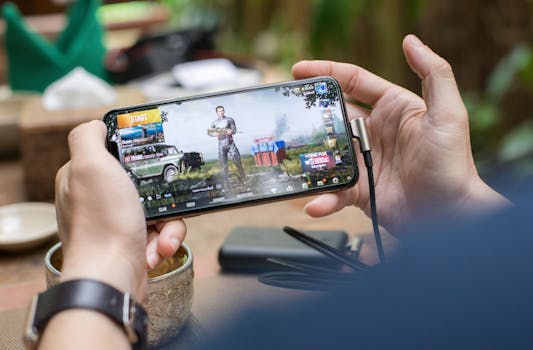
Landing a chicken dinner feels great when your gameplay is free of frame drops. Many players seek better results by searching for optimized pubg mobile fps settings on their phones.
PUBG Mobile attracts millions on both Android and iOS, where performance issues can spoil even the most promising round. That’s why tuning your graphics makes such a difference.
Follow this guide to unlock smooth FPS and competitive edge. Each section is packed with tips, proven tweaks, and actionable settings for reliable improvement on any compatible device.
Finding Your Device’s Sweet Spot: Matching Settings to Phone Hardware
Using hardware-appropriate pubg mobile fps settings guarantees consistent frame rates in every match. Start by confirming your phone’s model, chipset, and available RAM before attempting any changes.
On Android, devices vary widely in performance, from budget models to flagship phones. A balanced approach always considers both CPU and GPU power to keep your gameplay stable.
Assessing Your Current Experience
Notice those stutters mid-fight, or lag when rotating the camera? These symptoms indicate a mismatch between the game’s graphics demands and your hardware’s capabilities.
Players with older Androids or iPhones should prioritize performance by lowering extra effects. Observing frame rate drops during busy scenes signals it’s time to review pubg mobile fps settings.
By monitoring how your phone responds during high-action moments, you’ll see which settings sacrifice quality for speed, and which settings you can leave higher without penalty.
Typical Device Classes and Performance
High-end devices, like modern Samsung Galaxy S or iPhone Pro models, can push higher graphics while maintaining 60 FPS in PUBG Mobile, even in crowded firefights.
Mid-range phones such as the Moto G or older iPhones may handle Smooth or Balanced graphics with Medium FPS, ensuring steady play with only rare drops.
Budget devices require compromises. Setting FPS to Low or Medium and using Smooth graphics helps prevent overheating and battery drain, while keeping gameplay passably fluid.
| Device Class | Recommended Graphics | Max Stable FPS | Action Step |
|---|---|---|---|
| Flagship | HD/Ultra | 60 | Enable Anti-aliasing, leave Shadows on for best visuals |
| Upper Mid-range | Balanced | 40-60 | Disable Shadows if stutters occur |
| Mid-range | Smooth | 30-40 | Lower Effects, enable Colorful style |
| Budget | Smooth | 25-30 | Turn all extra visual effects off |
| Entry-level | Lowest | 20-25 | Avoid crowded maps, disable all background apps |
Optimizing Graphics, Frame Rate, and Effects: Getting Consistent Performance
Adjusting specific graphics, frame rate, and effect settings delivers smoother, more consistent pubg mobile fps settings results. Each tweak targets real-world improvement for Android and iOS users.
Start inside the PUBG Mobile graphics menu. Experiment with each core setting, noting changes in performance and how the game looks. Learn what’s visually essential for you versus what’s expendable.
Graphics and Frame Rate: Fine-tuning for Each Device
Reduce Graphics Quality to ‘Smooth’ on budget or older phones for the largest FPS boost. Increasing FPS to Medium or High improves responsiveness, even if graphics look simpler.
Match Frame Rate to your screen’s refresh rate for the best fluidity. For example, set it to High on a 60Hz display, or Extreme on 90Hz+ screens where available.
- Set Graphics to Smooth for fast response and minimal lag, especially during fights.
- Prefer Frame Rate settings at High or Extreme to ensure touch actions feel immediate.
- Disable Shadows and Anti-aliasing if you notice FPS drops in busy areas or in heated exchanges.
- Lower Effects Quality to prevent overheating on any phone in long gaming sessions.
- Enable Colorful style if you want vibrant visuals without taxing hardware or causing stutter.
Apply pubg mobile fps settings changes a few at a time and test in Training Mode for visible difference.
Advanced Effects: Balancing Beauty with Speed
Some in-game settings look great but hurt FPS. Reflections, particles, and real-time shadows create immersive scenes, yet eat processing power and may slow action significantly.
- Disable Reflection Quality for less strain on the GPU, especially indoors or during rainy scenes.
- Turn off Water Reflection to gain 5–10 extra FPS on older devices struggling with beach or river maps.
- Reduce Scope Effect for quicker aiming, aiding your shooting speed on lower-end phones.
- Trim Render Distance to Medium when you don’t need to see far enemies, boosting reliability.
- Minimize Brightness so the display uses less power, maintaining steadier FPS throughout longer games.
Monitor battery and heat to make sure your settings hold up in real matches and don’t degrade as rounds go on.
Real-world Scenarios and Tactics: Adapting on the Fly with Smart Setting Choices
Adapting your pubg mobile fps settings mid-match provides a live advantage, especially in changing battle conditions. Every in-game situation rewards players who know when to shift performance priorities.
Quick Setting Switch in Hot Drops
When dropping into Pochinki or School, lots of enemies crowd the screen and FPS can tank fast. Prepare by switching Graphic Quality to ‘Smooth’ before you land.
If you sense stutters, immediately lower Effects and Frame Rate while seeking cover. This keeps aiming accurate, as visible in smoother crosshair movement during close combat.
After winning the initial fight, gradually restore settings as the action thins out. This lets your device keep up without burning battery early on.
Late-game Adaptation in Final Circles
As matches wind down, your phone may heat up or drain battery quickly. If your FPS dips noticeable, trim every extra setting to avoid lag at critical clutch moments.
Players sometimes say, “it started smooth, but after 20 minutes it lagged.” Lowering graphics, shadows, and disabling background apps right before the final zone gives reliability.
Your pubg mobile fps settings should always flex to your device’s heat and battery, not just personal preferences. Adapt right before endgame fights for fewer surprises.
Adjusting Control and Sensitivity Settings for Fast, Fluid Play
Dialing in your controls and sensitivity settings can dramatically boost in-game performance and quick reaction time. Optimized pubg mobile fps settings pair with custom control layouts for best results.
Faster frame rates should always be matched by touch controls that respond intuitively. As FPS increases, slightly ramp up vertical and horizontal sensitivities for a snappy feel without overshooting targets.
Tuning Sensitivity for Maximum Headshot Accuracy
Start by increasing Camera and ADS (Aim Down Sights) sensitivity by increments of 5–10% after each FPS boost. Test swiping left-right and quick-scoping on targets at different ranges.
If your crosshair overshoots, dial back by a small amount and check again. Find your ‘muscle memory’ sweet spot after each graphics tweak for the best aim stability.
Sensitivity pre-sets like ‘Low’ or ‘Medium’ in PUBG Mobile work well for 30 FPS. Take time to personalize further with each new device or setting change for super-smooth results.
Control Layouts: Going Beyond Default for Competitive Gains
Shift from one-finger layouts to three or four-finger setups for better movement while aiming and shooting. Add fire and crouch buttons in easy thumb reach for instant reactions.
For high-FPS gameplay, position buttons where you can simultaneously aim and shoot without looking away from enemies. Practice on Training Grounds until motions feel natural and precise.
Adjust transparency so controls are visible without blocking enemy sightlines. A clean, well-organized control scheme preserves every millisecond when the game gets intense and rewards your fast reflexes.
Maximizing Stability with System, Network, and App Tweaks
Your pubg mobile fps settings perform best when paired with top-notch networking and background app management. Small tech tweaks outside the game often yield a big improvement.
Close all unnecessary apps, kill performance-heavy background services, and clear RAM before launch. This frees more memory so PUBG Mobile runs smoother and keeps frame rates high longer.
Network Optimizations: Keeping Lag Spikes Away
Switching from mobile data to stable WiFi prevents rubber-banding or sudden ping spikes during intense battles. Place your device near your router for minimum latency.
In crowded apartments or shared networks, using 5GHz WiFi reduces interference and keeps your rounds consistent. Watch the network icon in PUBG Mobile for real-time feedback and adjust as needed.
Players say “my game freezes when someone streams Netflix” – ask others to pause heavy downloads for pro-level smoothness in every clutch moment. Every millisecond counts in a fast-paced firefight.
System Health Tips for Persistent FPS
Restart your phone before gaming to clear cache and give PUBG Mobile a fresh start. Disable automatic brightness if it pumps your screen above 90% and heats up the display.
Regularly update your device OS and graphics drivers (when possible) for maximum compatibility with new PUBG Mobile patches. Even minor updates may include FPS stabilization fixes.
Avoid charging your phone while playing whenever possible: battery heat creates lag over time. Schedule your longest sessions for when your battery’s above 40% for best results.
Takeaways for Reliable, Smooth, Competitive PUBG Mobile FPS
Tuning pubg mobile fps settings pays off with tangible gains in reliability, visual clarity, and win potential. Custom tweaks beat any one-size-fits-all approach, so keep experimenting for best results.
Each major tweak—whether adjusting graphics, frame rate, or touch sensitivity—creates a smoother baseline that holds up during late-game stress and hot drops alike. Gamers who review their settings monthly see better long-term performance.
Consistent victories start with consistent FPS. Use these strategies, stay attentive to small changes in play, and make your next chicken dinner the smoothest yet with the right pubg mobile fps settings.

